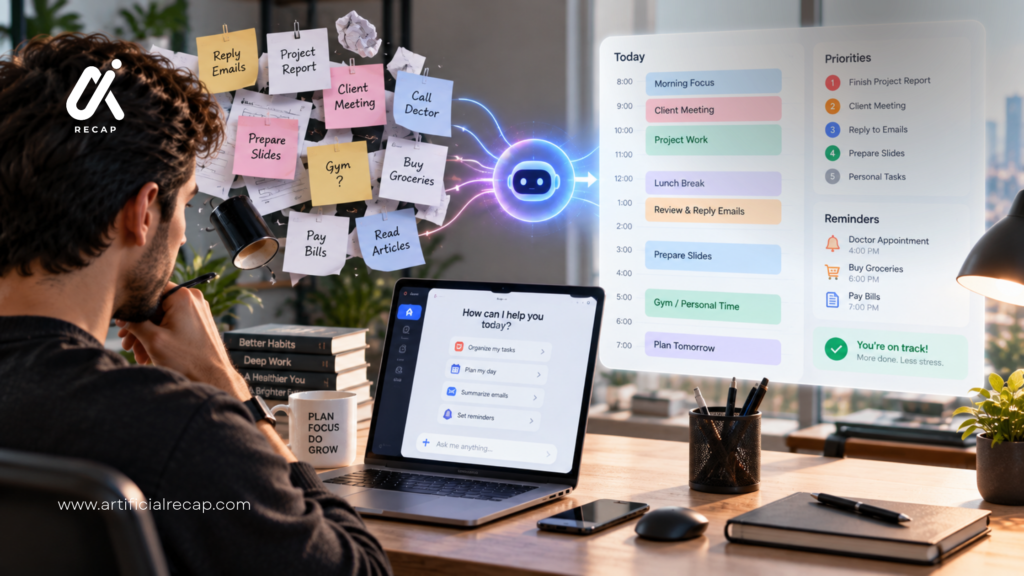
What if AI could be your own personal assistant that helps in your daily life?
For that, you do not need your own personal AI; you can do all these things with your existing artificial intelligence. If you are using AI just for answering questions, you are leaving out all the important features of AI. You can program the AI to help you organize your calendar, work, write emails, research ideas, do content development, and plan out your day.
What’s most important is knowing how to effectively communicate with AI. This is all about where the necessary instructions, context, and preferences are put into place in order for AI to deliver more helpful, consistent assistance. Today, we’re going to feature one week out of two to make the AI your own personal worker, and review some of the work that you can put off to it, and, provided you can, some of the prompts and tips you can employ immediately.
From students and professionals to content creators and everyone else looking to stay organized and save time, an AI personal assistant can help you become productive.
What does it mean to “Turn AI into a Personal Assistant“?

Most AI Chatbots by default are stateless. Each new conversation is fresh; the AI has no idea what you last asked it or your tone preferences, what your job is, etc. This may be OK for a single question, but it’s not very efficient when you want to create questions with AI all the time for your work, writing, or planning.
This isn’t some stand-alone app. A collection of built-in features that are typically referred to as custom instructions, memory, themes, or a custom GPT — that allow you to provide the context for the AI once and have it automatically use that context for the future.
Two typical examples of this are:
- ChatGPT also has the feature of Custom Instructions, which allows you to provide details about yourself, your tone, what you want the AI to do, and how you would like it to format its responses; there’s a separate Memory option for it, as well, to remember what you input so you don’t have to explain it to it again.
- Claude also has a multi-layered model: Claude-wide Instructions, per-chat Styles which set the tone for that conversation and formatting, Projects for work in a shared document, and a Memory feature (Settings > Features) that recaps information from previous conversations when enabled.
Although Google’s Gemini and Apple’s Siri have their own take on personalisation, with the depth of control again differing based on the platform and continuing to evolve, it may be worth checking the current settings menu for the app you are using.
Why Is This Useful?
Without personalization, you repeat yourself constantly: your job, your tone, your project details, your formatting preferences — every single conversation. That’s wasted time and wasted words in every prompt.
With it configured properly, you get:
- Faster answers because you don’t have to re-explain context
- More consistent output in the tone and format you actually want
- Continuity across sessions, so the AI can reference earlier work
- Less prompt engineering, since your defaults are already baked in
It’s similar to the difference between the new temp helping you in the morning and the assistant who has been with you for six months and already knows how you like things.
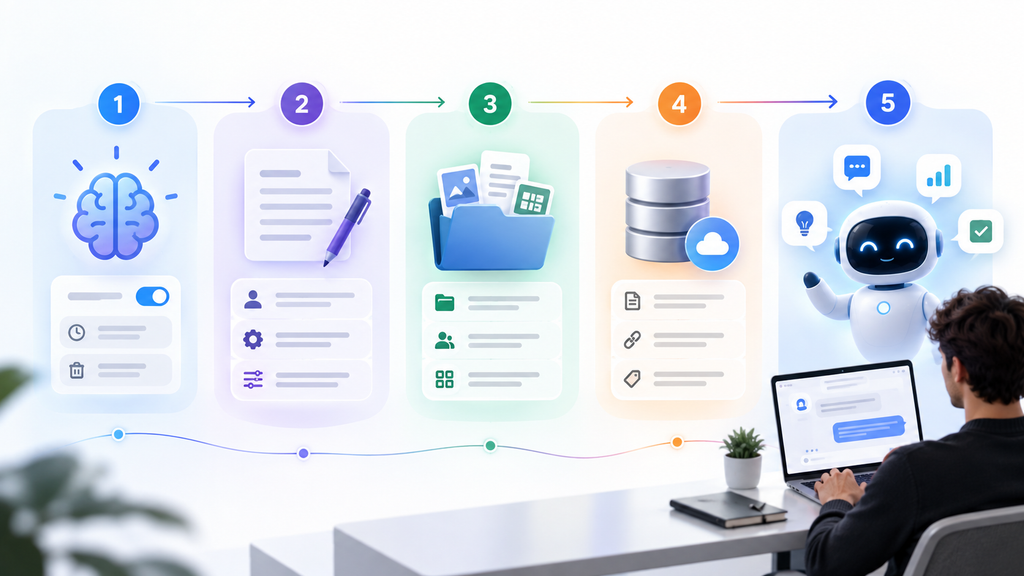
AI Personal Assistant Step-by-Step Guide
| Step 1: Turn on Memory | In ChatGPT, memory works alongside Custom Instructions and stores details you explicitly share, plus (if enabled) recent conversation context. In Claude, go to Settings > Features and turn on both memory toggles: one lets Claude search past chats for context, and the other lets it generate and store memory from your conversations going forward. |
| Step 2: Write your custom instructions | Open the personalization or instructions settings (in ChatGPT: Settings > Personalization > Custom Instructions; in Claude: Settings > Profile, under “Instructions for Claude”). Fill in details like: Your role (“I manage a small e-commerce store”)Your preferred tone (“direct, no fluff”)Your preferred output format (“bullet points over long paragraphs”)Any standing rules (“always ask before assuming numbers”) |
| Step 3: Create a project or workspace for recurring work | If you use the same context repeatedly — a client, a report, a course — set up a dedicated Project (available in both ChatGPT and Claude on paid plans, with some project features also on free tiers depending on the platform). Upload reference documents and add project-specific instructions so every chat inside that project already has the right context loaded. |
| Step 4: Reinforce memory explicitly | Instead of relying completely on AI, make things clear, like what you want AI to remember. Tell AI about something, and after some time ask a question related to previously saved data. |
| Step 5: Check AI remembers things or not | Periodically check your memory settings. Both ChatGPT and Claude let you view, edit, or delete individual memory entries. This matters because outdated or inaccurate memories can quietly skew future answers. |
Real Life Example
You’re a freelance content author who does freelancing and publishes articles about tech weekly. Instead of reminding your AI machine every time that you start a new conversation, you can give it information about how you work in the workflow.

prompt:
“When I provide you with a topic, assist me in developing an SEO friendly outline which I’ll then employ to write an article. My articles would be short paragraphs, include descriptive headings, include practical examples, would have an informal style of writing, wouldn’t include any redundant jargon or repetition, and wouldn’t make overly strong claims. Take this preference into account when making further contacts.”
It may exhibit a memory functionality that allows it to store the relevant preferences if there is available memory, or a personalization functionality.
Later it may be possible to re-open the conversation, and simply say:
“Prepare an outline report discussing how AI can be used to help students learn.”
The AI can work from your saved style and audience to create an outline in a fashion similar to what you use for your own writing.
You can also step up, program your AI, and have it perform the same functions with other mundane tasks such as scheduling your day for you, adding some notes for research, sending out emails, or posting on the various social media platforms.
Common Problems occur in this Phase
- Memory doesn’t seem to be working:
- Verify the memory toggle isn’t disabled in settings – it isn’t enabled by default at this time on most platforms. Also check if you’re not in incognito or temporary chat mode; otherwise, those will not save in memory.
- The AI still asks some questions it already knows the answer to:
- If it is being made aware of something, ask it to store that if it so desires, instead of just assuming that it was caught off guard after hearing something elsewhere in the conversation.
- Personalization does not appear to be consistent on devices:
- Custom instructions and memory typically aren’t associated with the device or are limited to the device, but should be tied to your account. If not, ensure that you are signed into the same account.
- Team or Enterprise account and memory isn’t available:
- Depending on the business plan, an admin or organization owner can decide whether to enable memory or not. If it’s not there, it probably isn’t a bug, but a policy setting.
- Worried about privacy:
- Analyse what is stored in the memory — almost all platforms give you the opportunity to look, modify, or even delete the Memory. On a shared or work account, review your organization’s data retention policy prior to putting sensitive personal information.
Conclusion
You don’t have to ask questions to get this much-desired AI personal assistant. The secret is to set the purpose and goal with AI, make your decisions, provide useful context and establish repeatable processes for the tasks you do regularly. From planning your daily tasks and organising your schedule to drafting emails, conducting research, planning on a topic, creating content, summarising it or learning something new, many of the time consuming digital tasks can be accomplished more efficiently with an AI assistant.
FAQs
1. How do I convert AI into personal assistant?
Enable memory in settings, set custom instructions to identify your job and preferences, and employ a project or workspace to ensure that context is retained for repetitive situations.
2. Is AI memory available for free?
On most platforms, basic memory and custom instructions are available even on free tiers, though advanced features like shared team projects are often reserved for paid plans. Check your specific platform’s current settings, since availability changes.
3. Can I remove or delete what AI remembers?
Yes, AI allows you to stop, remove, or permanently delete the saved data. It is a helpful feature to save your personal information that you do not want to share with AI.
4. Do I pay for a plan in order to use these features?
Not for the fundamentals necessarily. Features that are usually free include memory and custom instructions; features that are collaborative and/or team-based projects tend to be priced by the platform and therefore must be paid — before you assume this, visit any of the current pricing pages.