
Table of Contents
- Turn a Long PDF Into a Conversation
- The Questions You Ask Make the Difference
- Go Beyond a Simple Summary
- The Quick Version
- The Detailed Version
- A Practical Example
- Prompt patterns that improve results
- Chat vs Projects: which should you use?
- What Can Go Wrong When Claude Analyzes a PDF?
- Most of the probs can be avoided
- Conclusion
- Artificial Recap
- FAQs
Have you ever encountered a PDF with the goal of an hour of comprehension and then merely had 3 answers you desired? This is where Claude can prove to be very helpful. Upload the document, ask the right questions, and no longer have to scroll through the document to search, question, summarize, and understand it. Whatever research paper, business report, textbook, or technical document you might need to analyze, this guide will show you how to enhance your answers and how to use Claude to get answers from PDFs—including some simple prompting tricks that will help you a lot.
Turn a Long PDF Into a Conversation
The information you need might be located in a long PDF document, but it could take a lot longer to locate the information. Users can upload the document and use Claude to start entering queries into it about what is contained in the document without flipping through pages. It can assist you in extracting key points, explain complex parts of the text, summarise information, and make dense information understandable.

The Questions You Ask Make the Difference
The first step to uploading a PDF is just the beginning. The actual key is to tell Claude precisely what it is that you want to locate. You may be able to get a general overview from a simple request like “Summarize this PDF”, but a more specific request can yield a much more helpful answer. Claude can support with evidence, point out flaws, summarize sections, articulate specific details, or restructure information in a more usable format.

Go Beyond a Simple Summary
Claude is particularly helpful for lengthy documents like research papers, business reports, textbooks, and technical documents. Claude can read and analyze a PDF and give you answers to your questions—where most can only read from the first page to the last, it can help you understand the information that matters most to you. What’s important is how to lead the conversation, and that is what we’ll cover next.
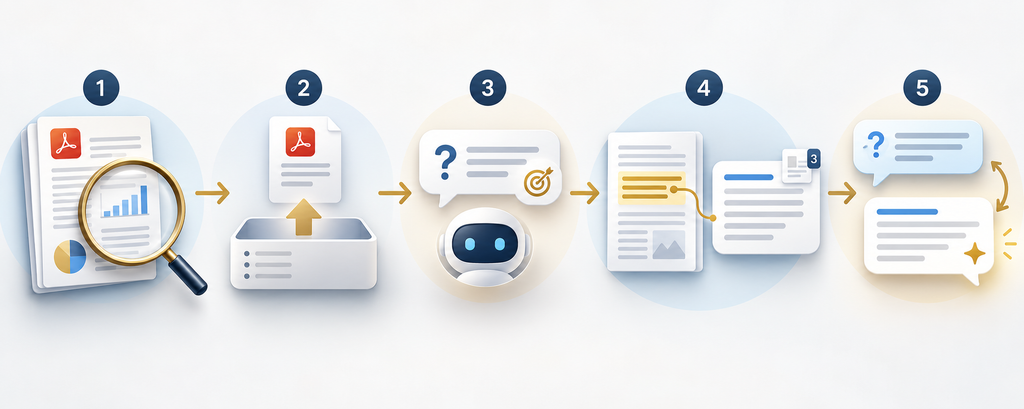
The Quick Version
If you just want the basics:
- Go to claude.ai (or open the Claude desktop app).
- Start a new chat or open a Project.
- Click the “+” button in the chat box.
- Select your PDF in the chat.
- Ask a specific question and tell it the reference pages.
The Detailed Version
The detailed version on how to analyze the PDF using Claude is:
1. Before uploading, check your PDF
| Check | What to look for | Why it matters |
| Password protection | PDF opens without a password in your viewer | Claude can’t read encrypted PDFs; remove protection first. |
| Page count | ≤ 1,000 pages for chat uploads | Files over 1,000 pages are rejected as “too large.” |
| File size | ≤ 500 MB in chat; ≤ 30 MB in Projects | Exceeding limits triggers upload errors. |
| File integrity | Opens cleanly in a PDF reader | Corrupted or partial downloads fail text extraction. |
| Scan vs text | Prefer text-based PDFs when possible | Scans work but may give less precise, less citable answers. |
2. Tell Claude exactly what you want
The biggest mistake: asking something vague like “Summarize this.” You’ll get a generic overview, not the insight you actually need.
Instead, be specific about:
- What you want extracted (numbers, dates, obligations, steps, definitions).
- How you want it formatted (table, bullet list, JSON, short paragraph).
- Whether you need page references.
3. Use page numbers as references
Claude indexes pages by their digital order in the PDF, not necessarily the printed page numbers in headers/footers.
| Do this | Not this |
| Refer to “page 27 of the file” as shown in your PDF viewer | Tell the page no that is mentioned on the document pages. |
| Ask: “Include the page between (pg no).” | Expect automatic citations without asking |
| Verify critical numbers against the actual pages | Treat every number as guaranteed without checking |
4. Handle long PDFs smartly
| Page range | What Claude sees | Actual Application |
| 1–100 | Text, visuals, tables, diagrams, images | Safe to rely on chart interpretation and figure captions. |
| 101–1,000 | Text only | Charts and images are effectively ignored; focus on text-heavy sections. |
A Practical Example
Suppose you’ve downloaded a 30 -page research paper about AI automation. You’re not going to read all the pages, but you’d like to know what the points are in it and if this research will help you in any way or not.

- Upload the PDF to Claude, and prompt it specifically:
- “Read this research paper and tell, in layman’s terms, what its three most important findings are, what evidence is provided for each, and any limitations mentioned by the researchers, if any.”
- After reading the key findings, pose a question to follow:
- “The paper says AI automation can improve productivity. Explain exactly how the researchers reached this conclusion and identify the evidence they used.”
- You can then dig even deeper:
- “Are there any findings in this paper that contradict or weaken that conclusion? Explain them in simple language.”
- Finally, ask Claude to turn everything into something you can actually use:
- “Create a five-point takeaway from this paper for a small business owner who is considering AI automation.”
This is a much better idea than having Claude summarize the PDF. You begin by giving the overview, then delve into individual claims, review supporting evidence, and then use the information to come up with practical applications. This is where Claude’s PDF analysis comes in particularly handy.
Prompt patterns that improve results
| Pattern | When to use | Example prompt |
| Extract to table | Contracts, specs, reports, policies | “From this PDF, extract all [items] into a table with columns: [list columns]. Include page numbers for each row.” |
| Compare sections | Spotting inconsistencies or changes | “Compare the security requirements in Section 3 and Section 7. List differences in a table: Requirement, Section 3, Section 7, Notes, Pages.” |
| Turn this into steps | Manuals, SOPs, onboarding docs | “Convert the procedure on pages 45–52 into a numbered step-by-step checklist. Include any warnings or prerequisites mentioned.” |
| Verify this claim | Fact-checking before external use | “The author claims [claim] on page X. Find all supporting evidence and any caveats in the document. Cite pages.” |
Chat vs Projects: which should you use?
| Aspect | Regular chat | Claude Projects |
| Best for | One-off analysis of 1–few PDFs | Reusing the same documents across many chats |
| File size limit | Up to 500 MB per file | Up to 30 MB per file |
| Max files | Up to 20 files per chat | Many files (bounded by context + retrieval) |
| PDF page limit | Up to 1,000 pages per PDF | Similar, but optimized for retrieval over raw context |
| Persistence | Files tied to that chat only | Files persist as “knowledge” for the whole Project |
| Ideal use cases | Contracts, reports, manuals you analyze once | Handbooks, policy sets, specs you query repeatedly |
What Can Go Wrong When Claude Analyzes a PDF?
Claude can make PDFs much easier to work with, but isn’t a substitute for checking the original. The response might be very broad, you might miss out on an important detail, or Claude might not be able to access a certain feature or part of the file. This can also be influenced by the PDF itself if it has unusual formatting, scanned pages, complex tables, or visual information.
One of the other common issues is posing a question that is too general. When you submit a long report and say, “Tell me all the important things,” you might not get the information that you need. Instead, try to make the task more specific: instruct Claude to analyze a specific part, look for specific information, explain a chart, look for evidence for a specific claim, etc.
Most of the probs can be avoided
If it doesn’t seem to be working, don’t begin all over again. Ask Claude to recheck the applicable part of the PDF, and to let you know where and how he found the answer to your question in the PDF. If you are seeking significant academic, financial, legal, or business information, you should always check Claude’s answer against the original PDF.
Conclusion
When using Claude to analyze a PDF, there’s a bit more to it than just uploading a PDF and asking for a summary. The real value is in asking probing questions, asking for supporting documents, and using follow-up prompts to delve deeper into the document. Claude can help you extract useful information from any document, whether it’s a research paper, business report, or another complex document. Begin with a single question, follow Claude’s response, and then follow up further—you might be surprised how much easier a lengthy PDF might be to understand.

Artificial Recap
For supported file types, upload steps, and PDF processing details, see Claude’s official…
FAQs
1. What should I do to get better answers from Claude when analysing a PDF?
State fairly what you desire. Do not just have Claude summarize the document; explain what information you are interested in, how to structure the answer and, if applicable, guide Claude to what pages or supporting info you need.
2. Can Claude read and explain tricky information from PDFs?
Yes. Ask Claude to give you a breakdown of technical aspects, research findings, charts, or confusing terms in simple terms. This can come in handy when reading academic or technical texts.
3. Can Claude analyze PDF files?
Yes. Claude can analyze supported PDF files and answer questions about their contents. Depending on the model and document, it can also work with visual elements such as charts and graphics.